Version 1.0.0 · macOS 26
A file manager for Mac power users
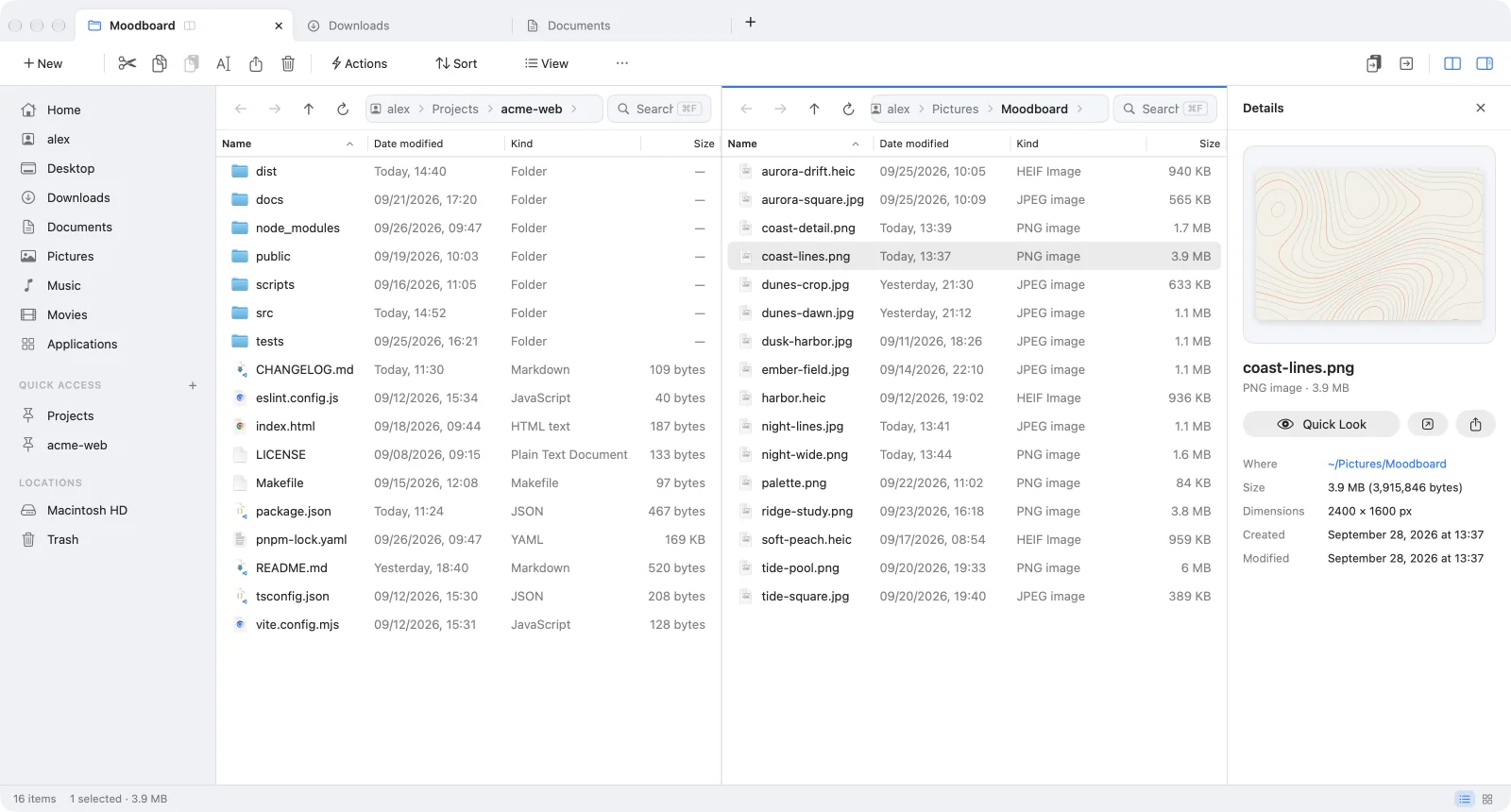
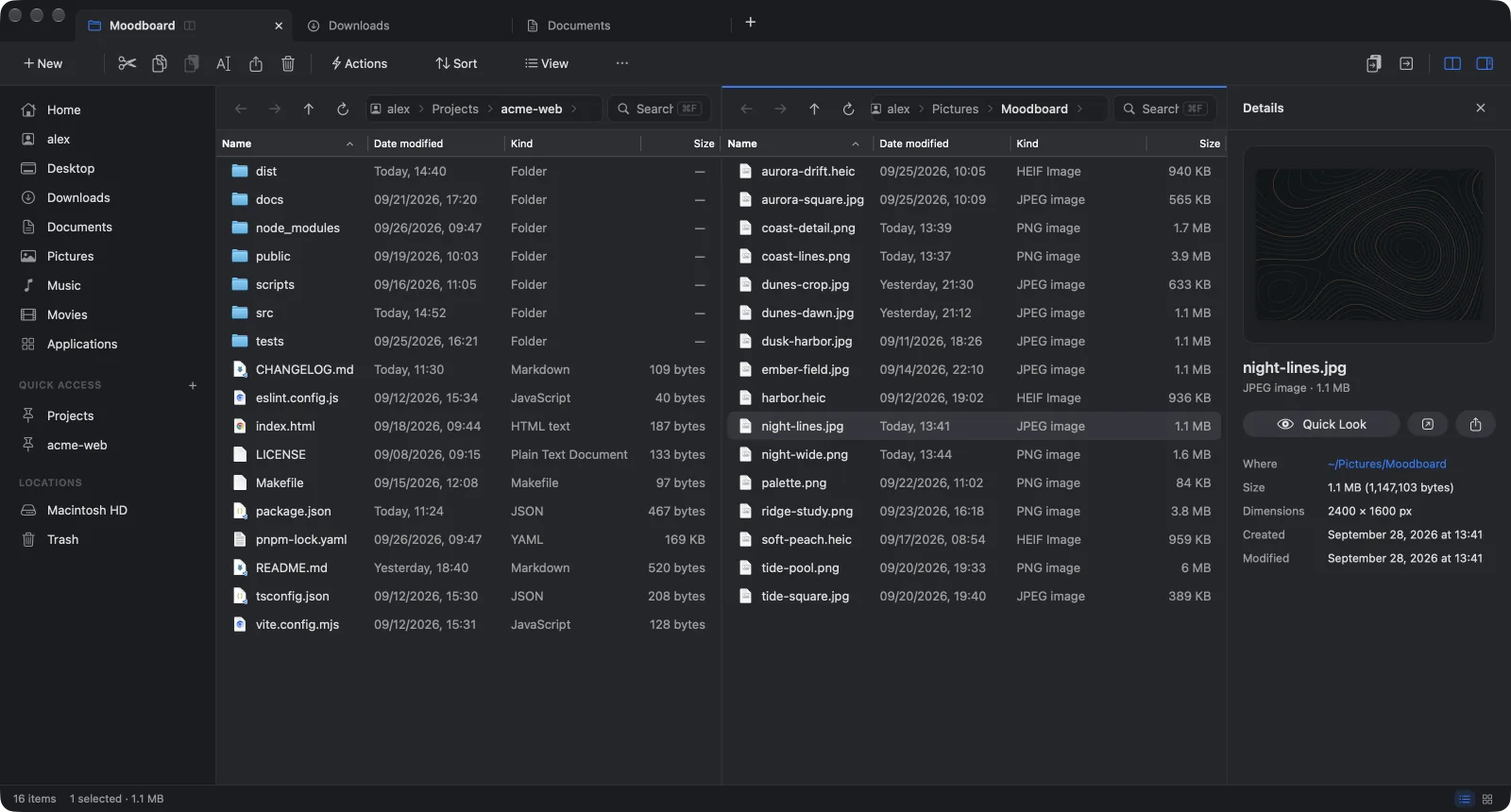
Tabs and two panes, an address bar you can type into, and real cut and paste. Right-click any file for Git, package scripts and image tools, or add commands of your own.
Coming soon to the Mac App Store
Read the docs$9.99, one-time purchase. Requires macOS 26 on a Mac with Apple silicon.
Made for the keyboard
Everyday file operations have shortcuts, including classics from other file managers: F2 renames, F5 and F6 copy and move between panes.
Tabs and two panes
Keep folders open in tabs, and split any tab into two panes to work across folders side by side.
- Command-TNew tab
- Command-3Two panes
An address bar you can type into
Click the path, then type or paste where you want to go. Folder names complete as you type.
- Command-LEdit the path
Real cut and paste
Cut files in one folder and paste them in another to move them. Copy and paste works with Finder, in both directions.
- Command-XCut
- Command-VPaste
Copy and move between panes
F5 copies the selection to the folder in the other pane, F6 moves it. If a name is taken, you choose to keep both, replace or skip.
- F5Copy
- F6Move
Batch rename
Rename many files at once with find and replace, regular expressions, numbering and case changes. A preview shows every new name first.
- Shift-F2Batch rename
Search as you type
Search the open folder and everything inside it. Results show up while you type, and wildcards like *.pdf work too.
- Command-FSearch
Undo
Take back the last copy, move or rename, and bring files back from the Trash.
- Command-ZUndo
Quick Look and details
Preview a file without opening it. The details panel adds dimensions, dates and the size of folders.
- SpaceQuick Look
- Command-IDetails
Type to select
Type the first letters of a name to jump to it. Home, End and the Page keys move the selection, and Shift extends it.
- R, E, AJumps to README.md
Right-click for the tools you already use
The menu adapts to what you select. A project folder offers its package scripts, make targets and Git commands. Images get conversions and resizing, archives extract in place, and source files can be copied as context for an AI chat.
- Open In
- Your editor, terminal and IDEs
- Scripts
- package.json scripts, make targets, script files
- Git
- Status, log, pull, fetch, push, .gitignore
- JSON
- Format, minify and validate
- Organize
- Batch rename, flatten, sort into folders
- Archive
- Create and extract ZIP and TAR archives
- Images
- Convert, resize, rotate, PDF to images
- AI
- Files as context for Claude, ChatGPT and Perplexity
- Hash
- SHA-256 and other checksums
- Locked Files
- Lock and unlock files
- Copy Path
- Paths, names and file URLs
Add your own commands
Describe a command in a small JSON file, and MacScout adds it to the menu wherever it fits. Save the file and the command is there, no restart needed.
- Placeholders
- {file}, {dir}, {basename} and more become quoted paths and names, so spaces and quotes in file names can’t break a command.
- Filters
- Extensions, file types and the size of the selection decide where an action shows up.
- Output
- Run in the background, show what the command printed, or hand the command to your terminal.
"actions": [
  {
    "title": "Convert to WebP",
    "menu": "Images",
    "command": "cwebp -q 85 {file} -o {dir}/{basename}.webp",
    "extensions": ["png", "jpg", "jpeg"],
    "shortcut": "ctrl+cmd+w"
  }
]
Select PNG or JPEG files, right-click, and choose Images › Convert to WebP, or press ⌃⌘W.
A list for details, a grid for pictures
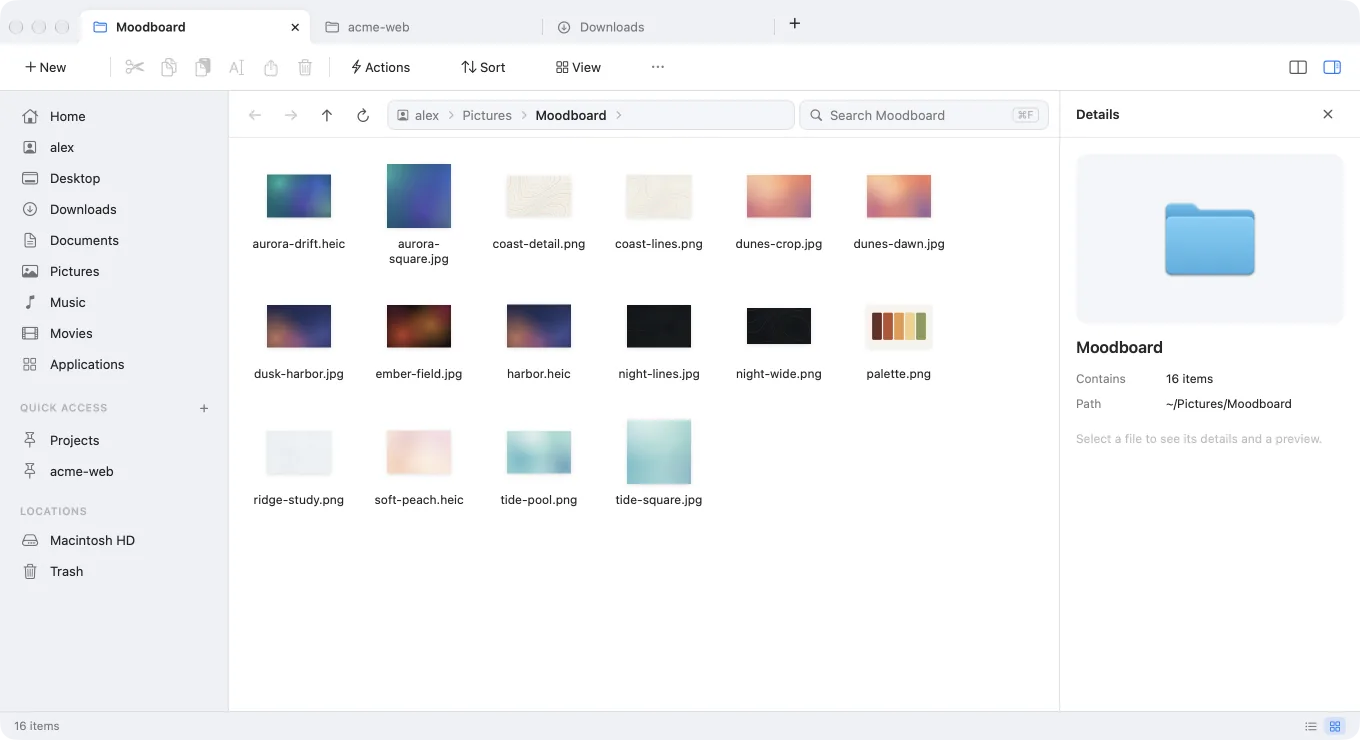
Sort the list by any column, or switch to thumbnails when you look for a picture. The sidebar keeps your folders, drives and pinned places one click away, and Home shows the files you opened last.
- Command-1List
- Command-2Grid
- Command-IDetails panel
Made for macOS
Native Swift
Written in Swift with SwiftUI and AppKit, and built for Apple silicon.
Works with Finder
Files you copy in Finder paste in MacScout, and the other way around. ⌥⌘R shows any file in Finder.
From the Mac App Store
One purchase, with updates through the App Store. MacScout runs in Apple’s App Sandbox and opens only the folders you allow.
No account, no analytics
There’s nothing to sign up for, and MacScout doesn’t collect data about you or your files.
Get MacScout
Get MacScout from the Mac App Store and open a folder. When you want more, the docs show how to add your own actions.
Coming soon to the Mac App Store
Read the docs$9.99, one-time purchase. Requires macOS 26 on a Mac with Apple silicon.